
April 11, 2024

Dimensions

  • April 11, 2024
  • 7 replies
  • 0 views

Hello, 

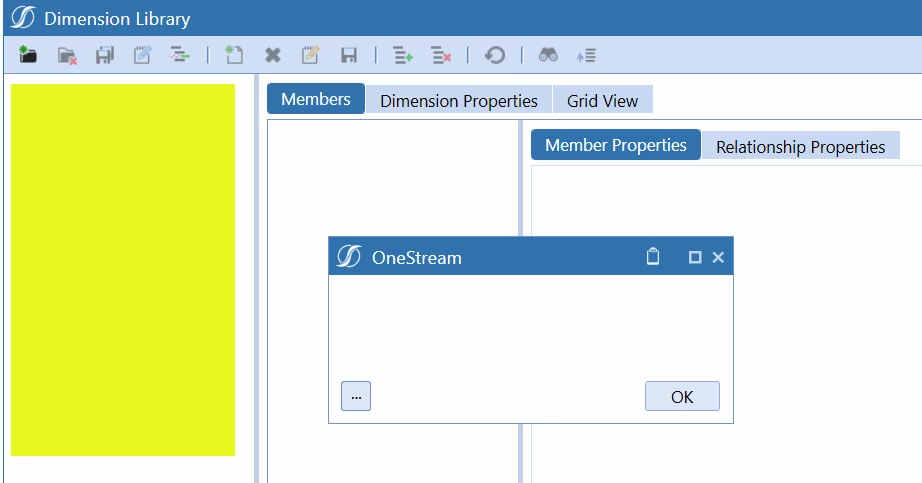
I am new to OneStream. While adding dimension items below the root, it seems I may have inadvertently broken something. As a result, I am unable to view the dimensions—highlighted in yellow region below. Clicking ‘OK’ on the dialog shown in the screenshot did not restore access to those dimensions. I’m unsure how to rectify this or reset it back to normal. Appreciate any inputs on this. Thanks
OSError11042024.gif

7 replies

April 11, 2024

I assume you've already tried to close / reopen the client etc?

You might be able to extract the metadata from Load/Extract, review and modify the xml to make it sensible again, then load it back in.

If everything else fails, ping Support through the web portal and they'll work with you.

svj12Author
April 11, 2024

Thank you JackLacava. I am accessing OneStream on the Cloud. I have tried closing and reconnecting. Additionally, I attempted to extract metadata, but encountered an issue—it wouldn’t allow me to extract it. However, by selecting and deselecting items from the extraction list, I was able to identify the specific item causing the problem. The error log says "unknow error". 

User Interface Stack Trace:

Server stack trace:
at System.ServiceModel.Channels.ServiceChannel.HandleReply(ProxyOperationRuntime operation, ProxyRpc& rpc)
at System.ServiceModel.Channels.ServiceChannel.EndCall(String action, Object[] outs, IAsyncResult result)
at System.ServiceModel.Channels.ServiceChannelProxy.InvokeEndService(IMethodCallMessage methodCall, ProxyOperationRuntime operation)
at System.ServiceModel.Channels.ServiceChannelProxy.Invoke(IMessage message)

Exception rethrown at [0]:
at System.Runtime.Remoting.Proxies.RealProxy.HandleReturnMessage(IMessage reqMsg, IMessage retMsg)
at System.Runtime.Remoting.Proxies.RealProxy.PrivateInvoke(MessageData& msgData, Int32 type)
at OneStream.Client.SharedUI.DimensionLibraryServiceReference.DimensionLibraryService.EndGetDimLibraryInitInfoCompressed(IAsyncResult result)
at OneStream.Client.SharedUI.DimensionLibraryServiceReference.DimensionLibraryServiceClient.OnEndGetDimLibraryInitInfoCompressed(IAsyncResult result)
at System.ServiceModel.ClientBase`1.OnAsyncCallCompleted(IAsyncResult result)

April 11, 2024

If you know which item it is, it might be possible to address it with a business rule or some db surgery. As Robb said, work with Support and they should be able to get you out of this pickle.

April 11, 2024

I'm doubtful any changes to metadata are causing this.  It looks more like failure in the presentation layer of the desktop application.  No properties grid, no text in any white area, even the stock dimensions tree isn't presented.

Is this V8.2 or 8.2.1?

svj12Author
April 11, 2024

Thank you RobbSalzmann for your response. My apologies, I should have mentioned that I am accessing OneStream via the Cloud. I’ve also attempted rebooting the machine, just in case, but the issue still persists

April 11, 2024

what version please?

svj12Author
April 11, 2024

We are on version 7.4.1

April 11, 2024

Thanks.  I was curious because I've observed compression - related strangeness in other versions.  Not 7.4.1 though.  Its a bummer this is happening, I hope you find a solution.  I'd have to work with support on this.  

svj12Author
April 11, 2024

Thank you JackLacava and RobbSalzmann for your all your responses. This appears to be a bug to me, so it might be necessary to report it to support.

April 11, 2024

svj12 - I experienced the same issue in older version 6 but not in 7 and Later version. Please update the outcome from support. 

svj12Author
April 19, 2024

Just to provide an update, I was advised to try the following solutions. However, none of the suggestions resolved the issue. It appears that the application I was using was created as a copy of another application. In the end, I decided to create a new blank application, although this solution is not ideal.

Suggestions...

Press the Windows logo key + R to launch the “Run” App. In the Run app, type %temp% and hit enter.
This will open the temporary files folder in the AppData app.
Now, press “Ctrl + A” on your computer to select all the temporary files.
Press “Delete” to delete all the temporary files in the folder.

Delete the Settings folder in the below path:
C:\Users\USERNAME\AppData\Roaming\OneStream\Desktop\Settings

Delete the 2.0 folder in the below path:
C:\Users\USERNAME\AppData\Local\Apps\2.0

Thank you again JackLacavaRobbSalzmann and Krishna for your inputs.