June 19, 2024
Solved

Intercompany Transformation rule profile

  • June 19, 2024
  • 3 replies
  • 0 views

Good Day All:

What table would contain the intercompany rule profile.  I see source value and target value in the grid.  But I want to see all mapping. On target value, I just see entity name, how do I confirm accounts (A#)?

Thanks,

Steve P.
Best answer by Henning

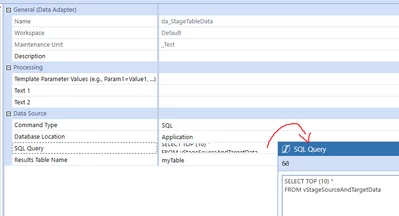
Just to add to this, this is how the data adapter can look like:


Henning_1-1718896978576.png

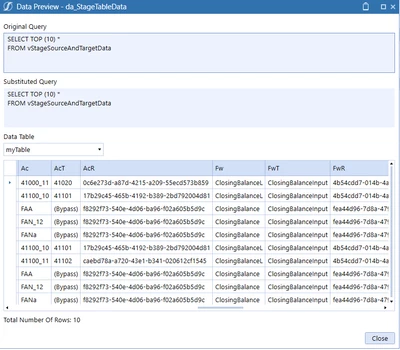
And this is the result in my case (scrolled to the right to display Ac and Act in column 1 and 2 on the left hand side):


Henning_0-1718896897277.png

This is of course - as per screenshot - a very raw form of looking at the table. With some more simple SQL, this will look nicer and easy to consume.

3 replies

June 19, 2024

I am not 100% sure I am following but first, you would want to go to the WF import profile to where you are loading and mapping data:


T_Kress_0-1718833768886.png

From the correct WF profile you can find the "Transformation Profile Name".  Then you would go to that transformation profile name and there you can find the intercompany mapping table:


T_Kress_1-1718833878307.png

The table above will tell you how all the intercompany data in a source file is mapped to ICP dimension.

As you probably know you it is a combination of E# property settings and A# property settings that ultimately control what accounts and entities are allowed to have IC mapping.


SpalominoAuthor
June 20, 2024

Teresa:  Thanks for the response.  You are on the right track.  What if I want to see "all" of my 30 entities at once?  Can I go into OneStream and use a data adapter and write a SQL script against a table and see all the mapping?  To avoid having to go one by one.  Hope my question makes more sense.

Thanks,
SP

June 20, 2024

Hi, do you wish to see the mapping as per what Teresa pointed you to, or do you mean you wish to see the mapped data?

If you want to see a table that includes mapped source and target members as well as data of loaded data, you can use a data adapter that pulls data from the view called "vStageSourceAndTargetData".

To check the table and the columns, you can start by using e.g.

SELECT TOP (10) *
FROM vStageSourceAndTargetData

In the table, e.g. the column "Ac" will display your source account member before the mapping, and the column "AcT" will display your target account after the mapping for the data record of the respective row. 

And yes, you can enhance this will all kinds of approaches such as business rules and more advanced dashboards if needed, but the data adapter with limited SQL is the easiest to begin with.

HenningAnswer
June 20, 2024

Just to add to this, this is how the data adapter can look like:


Henning_1-1718896978576.png

And this is the result in my case (scrolled to the right to display Ac and Act in column 1 and 2 on the left hand side):


Henning_0-1718896897277.png

This is of course - as per screenshot - a very raw form of looking at the table. With some more simple SQL, this will look nicer and easy to consume.

SpalominoAuthor
June 24, 2024

Thanks everyone for the help.  I very much appreciate the input and information.