March 18, 2024
Solved

Auto fit to Page without increasing FontSize

  • March 18, 2024
  • 1 reply
  • 0 views

Hi

I'm trying to fit the Cube View contents to the width of the page.

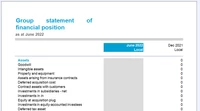
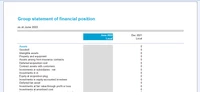
When I set "Auto Fit to Page Width" = "True" and "Auto Fit Number of Pages Wide" = "1", it increases the font size until the CV reaches the margins, instead of extending the rows with the line-item descriptions.

Is there a workaround for this?

OneStreamDesktop_V9sTpbjWaf.png

OneStreamDesktop_V1CuMsBYxq.png

Regards, Allison

Best answer by JackLacava

Yes, one can use a Cube View Extender Business Rule. It's not the simplest thing, and it's a bit black magic, but it works.

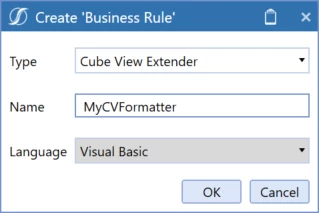
First, create the Extender
JackLacava_0-1710859744177.png

The rule should contain this:

' this first line will already be there, leave it
Case Is = CVExtenderFunctionType.FormatReportUIItem
	' the lines below must be added under that line
	Dim uiItem As CVExtenderReportUIItem = args.Report.CurrentUIItem
	If uiItem.UiItemType = XFReportUIItemType.RowHeaderLabel Or uiItem.UiItemType = XFReportUIItemType.UpperLeftLabel Then
		uiItem.width = uiItem.width * 1.5f
	End If

Basically we specify the width of the cell, in this case 50% wider (x 1.5) when it's a row header or the top left "empty" corner. That width is technically a Single, so any number you use must end with "f" (awkward, I know). Instead of multiplying, you can add fixed values - for reference, the average header starts around 200 or 300 wide.

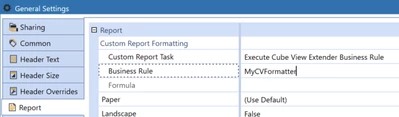
Then we attach it to the CV:
JackLacava_1-1710860182644.png

Note that extra formatting applied to the cell, like font size etc, can stop it from growing. You can check it in code with "if uiItem.CanGrow = False then", but to be honest I would just start without any formatting option, test the rule does what it should, and only then add extra formatting properties, so you can see quickly what creates problems.

1 reply

March 19, 2024

Yes, one can use a Cube View Extender Business Rule. It's not the simplest thing, and it's a bit black magic, but it works.

First, create the Extender

JackLacava_0-1710859744177.png

The rule should contain this:

' this first line will already be there, leave it
Case Is = CVExtenderFunctionType.FormatReportUIItem
	' the lines below must be added under that line
	Dim uiItem As CVExtenderReportUIItem = args.Report.CurrentUIItem
	If uiItem.UiItemType = XFReportUIItemType.RowHeaderLabel Or uiItem.UiItemType = XFReportUIItemType.UpperLeftLabel Then
		uiItem.width = uiItem.width * 1.5f
	End If

Basically we specify the width of the cell, in this case 50% wider (x 1.5) when it's a row header or the top left "empty" corner. That width is technically a Single, so any number you use must end with "f" (awkward, I know). Instead of multiplying, you can add fixed values - for reference, the average header starts around 200 or 300 wide.

Then we attach it to the CV:

JackLacava_1-1710860182644.png

Note that extra formatting applied to the cell, like font size etc, can stop it from growing. You can check it in code with "if uiItem.CanGrow = False then", but to be honest I would just start without any formatting option, test the rule does what it should, and only then add extra formatting properties, so you can see quickly what creates problems.
AllisonMAuthor
April 9, 2024

This worked!

I couldn't get the multiplication to work even without any formatting applied, but the fixed width alternative worked. I will add back the formatting and take it from there. 

Thank you for your wisdom 🙂