
May 28, 2024
Solved

Percentage sign not showing for columns in report book

  • May 28, 2024
  • 5 replies
  • 0 views

hi,

I am having trouble keeping the percentage sign for my percentage columns when running a report book from a CV.

the percentage sign is working when it is in CV but not when it is exported to excel or when I run it in a report book.

I did change the cell formatting for reporting as suggested in another post, which is changing ReportUseNumericBinding to True and set ReportNumbericBindingFormat to percent sign. But it is still not working for me.

this is the formatting I am using for the column: BackgroundColor = White, ExcelNumberFormat = 0.00%, ExcelRightBorderColor = Black, ExcelRightBorderLineStyle = Thin, ExcelWrapText = True, ReportNumericBindingFormat = [#,###,0\%], ReportUseNumericBinding = True, ShowPercentSign = True
Best answer by rwebb

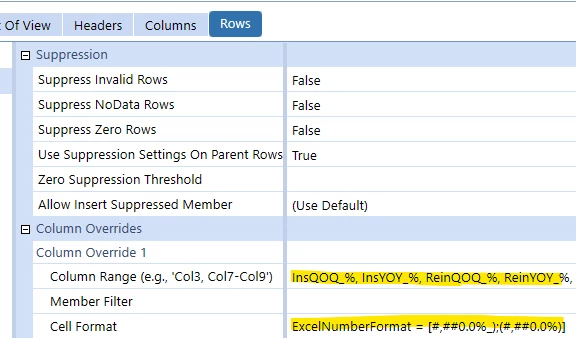
I think I found the solution to this. Under Rows, there is a section called Column Overrides, all I needed to do was to add the columns that I want to show percentage sign in column range  and put the cell format I want to have for those columns. below is my example. Screenshot 2024-06-10 120001.png

5 replies

May 28, 2024

I would use something like this:
NumberFormat = [#,###,0\%;(#,##0\%)], Scale = [-2], ExcelNumberFormat = [#,##0%;(#,##0%)], ExcelUseScale = [False]

If you want more decimals add .00 after the 0

May 28, 2024

Hi,

I have tested this formatting and the percentage sign is displaying when exporting to Excel.

ExcelNumberFormat = [#,###,0.00\%;(#,###,0.00\%)], NumberFormat = [#,###,0.00\%;(#,###,0.00\%)], ReportNumericBindingFormat = [#,###,0\%;(#,###,0.00\%)]

Melinda

rwebbAuthor
May 30, 2024

neither of these solutions worked for me. I am not sure if this has something to do with the fact this column is a calculated field.

June 5, 2024

Hi,

This is what I used to show percentage signs for data explorer, Excel and PDF Reports.

ExcelNumberFormat = 0.00%, NegativeTextColor = Red, NumberFormat = [#,###,0.00\%], ShowPercentSign = True

rwebbAuthorAnswer
June 10, 2024

I think I found the solution to this. Under Rows, there is a section called Column Overrides, all I needed to do was to add the columns that I want to show percentage sign in column range  and put the cell format I want to have for those columns. below is my example. Screenshot 2024-06-10 120001.png

June 10, 2024

Another option, if you do not want to use a column range override on specific rows, is to use a default conditional formatting option based upon your column naming convention.

For example, if all your column names contain "_%" or "%" or "PCT" in the cube view column name, you can key in on that to add your number formatting standard.

It would be something like this:

If (ColName Contains '_%') Then
Add your formatting here
End If


This way if you name your columns consistently you do not have to update the override for non-contiguous or newly added columns in the future.

rwebbAuthor
June 11, 2024

this is nice trick to know! thank you!