September 10, 2025
Solved

Using "ColumnDisplayType" property in grid view component

  • September 10, 2025
  • 1 reply
  • 0 views

The ColumnDisplayType property has two options: WorkflowStatusImage & OneStreamClientImage. I am looking to leverage one of the two options, but have found minimal documentation on them. 

What I have found, is that the WorkFlowStatusImage is related to values in a Status column like "2" equals a green circle, "10" equals a red circle. 

This uses the XFClientImageTypes library. I am not sure how to leverage this library and populate my SQL table/grid view with one of these status images/icons. 

Any assistance is appreciated. I have the status column value equal to "2" or "10" but I can't get the icon/image to display on my grid view component.

Best answer by sameburn

Hi DRider​ 

To use these you need to...

  1. Set ColumnDisplayType property as OneStreamClientImage.


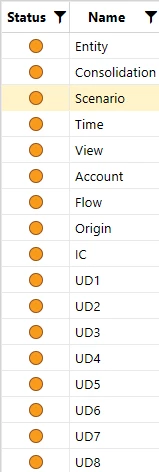
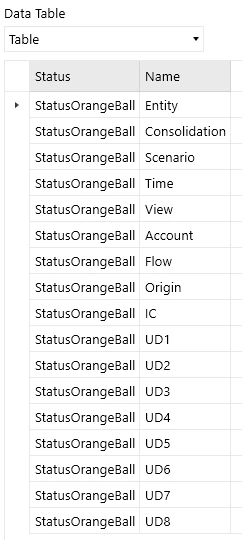
  2. Pass in your nominated XFClientImageTypes property as a string to your nominated column in your DataSet e.g. "StatusOrangeBall".


3.  Then you get the result displayed as expected.


4.  XFClientImageTypes available (I am using v9.1) are (you can also see these using intellisense):

  • Delete
  • Download
  • Info
  • Save
  • StatusBlueBall
  • StatusGrayBall
  • StatusGrayCheckMark
  • StatusGreenBall
  • StatusGreenCheckMark
  • StatusLightGreenBall
  • StatusLockedWithCheckMark
  • StatusLockedWithFolder
  • StatusOrangeBall
  • StatusRedBall
  • StatusWhiteBall
  • Upload
  • User

Hope this helps

Sam


1 reply

sameburnAnswer
September 11, 2025

Hi DRider​ 

To use these you need to...

  1. Set ColumnDisplayType property as OneStreamClientImage.


  2. Pass in your nominated XFClientImageTypes property as a string to your nominated column in your DataSet e.g. "StatusOrangeBall".


3.  Then you get the result displayed as expected.


4.  XFClientImageTypes available (I am using v9.1) are (you can also see these using intellisense):

  • Delete
  • Download
  • Info
  • Save
  • StatusBlueBall
  • StatusGrayBall
  • StatusGrayCheckMark
  • StatusGreenBall
  • StatusGreenCheckMark
  • StatusLightGreenBall
  • StatusLockedWithCheckMark
  • StatusLockedWithFolder
  • StatusOrangeBall
  • StatusRedBall
  • StatusWhiteBall
  • Upload
  • User

Hope this helps

Sam